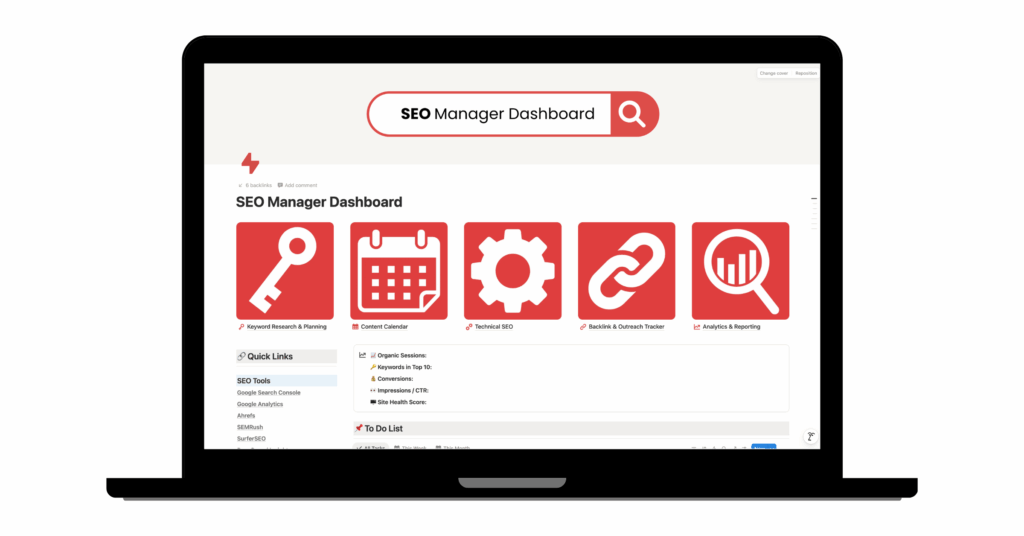
I’ve been working in an agency setting for 15 years now, and it’s always been a struggle to keep everything organized. Not only did I have a million tabs open to pull data from multiple SEO tools, but I also had multiple spreadsheets, Word docs, project management tools, and emails to flip between to consolidate it all together. It was maddening!
That’s why I decided to create my own SEO dashboards in Notion. It keeps everything organized, and makes it easy to see strategy, link outreach, and client management all in one place.
Notion SEO Dashboards to Simplify Your Workflow
- SEO Manager Notion Dashboard
- Link Building Pipeline Notion Dashboard
- SEO Client Portal Notion Dashboard
- SEO Client Manager Notion Dashboard
These dashboards simplify my workflow and make it easy to see what needs to be done each day to keep client projects moving and search rankings growing.
What is Notion?
Notion is a digital workspace that brings a wide range of productivity tools together in one place. You can build structured databases, calendars, to-do lists, and notes—all within a single, organized hub.
When you first open the app, you’re greeted with a blank page. From there, you can create a workspace that fits your exact needs. Some people use it for journaling or personal planning, while others turn it into a full-fledged project management system.
What makes Notion so powerful is its flexibility—you can keep it simple or build something more advanced, depending on how you like to work.
An Organization Tool Built Specifically for Busy SEO Professionals
When I was working at an agency, I didn’t realize how spoiled I was by all the tools I had access to. I had access to multiple keyword research tools, and a custom-built portal to keep all my link building and content creation efforts organized. Now that I’m on my own (and on a budget), I wanted to create something straightforward and useful to organize my workflow and cut down on the fatigue of juggling multiple windows and tabs.
When I discovered Notion, it was love at first sight. It’s easy to use, highly customizable, and (best of all) free. I started by exploring dashboards from other creators to see how they managed their workflows, then spent time reading reviews and brainstorming how to improve on their shortcomings.
The result? A set of four Notion dashboards built specifically for SEO professionals—functional, cohesive, and actually enjoyable to use.
Breaking Down Each Notion Template (and How I Use Them)
Now that we’ve covered why I created these Notion templates, let’s dive into the purpose of each one and how they help me keep each SEO campaign on track.
1. SEO Manager Notion Dashboard
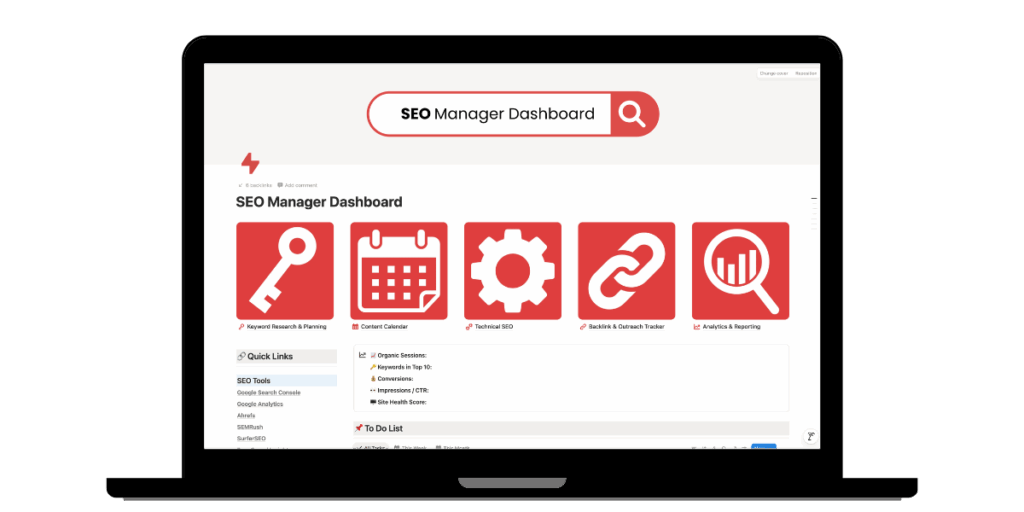
The SEO Manager Notion Dashboard is the hub for each client campaign. It’s where I track everything from keyword research to technical SEO issues, to published backlinks for the month. I can also see monthly wins and opportunities at a glance.
Keyword Research
Let’s start with keyword research. I needed a place where I could brainstorm keyword opportunities. So, I created a database dedicated to tracking my keyword research. Each month, I revisit it while planning my content calendar, using filters for priority, intent, and ranking potential. This makes it easy to strike the right balance between targeting new opportunities and reinforcing the content that’s already performing well.
Content Calendar
Speaking of content calendars, I have an entire page dedicated to tracking what needs to be written and published each month. There’s a table view for filtering by due date and status, and a calendar view that shows what’s been published and what’s coming up next. It helps me stay on top of everything—from the keywords we’re targeting to where each piece will live on the site.
Technical SEO
The Technical SEO page includes a log to track issues found during audits, Screaming Frog crawls, and Google Search Console checks. You can assign a priority level to each fix, note how it was discovered, and tag the person or team responsible for fixing it. It’s perfect for ensuring issues are resolved quickly and everyone knows who’s responsible for each task.
Backlink and Outreach Tracker
The backlink and outreach tracker is where I keep tabs on the links I’ve built each month. It’s a simple, straightforward database designed for SEOs who aren’t deep in link building every day.
If you’re someone who spends a lot of time doing outreach, you’ll want to check out the Link Building Pipeline Notion Dashboard, which I’ll dive into below. But for everyone else, this tracker is perfect for keeping an eye on which links have gone live, where they’re located, and what type of content they’re connected to.
It’s a simple way to track your link-building progress with all the essential info in one convenient place.
Analytics & Reporting
Finally, the SEO Manager Notion Dashboard includes a dedicated page for tracking your key monthly metrics—organic sessions, keyword performance, conversions, and month-over-month trends. It’s also a great place to document wins and opportunities, making it easy to reference insights during client calls or team meetings.
Altogether, this dashboard has become my go-to workspace for every campaign. It’s where ideas turn into strategy, strategy turns into action, and action turns into measurable results.
🎯 Get the SEO Manager Dashboard to organize strategy, content, and reporting — all in one Notion workspace.
2. Link Building Pipeline Notion Dashboard
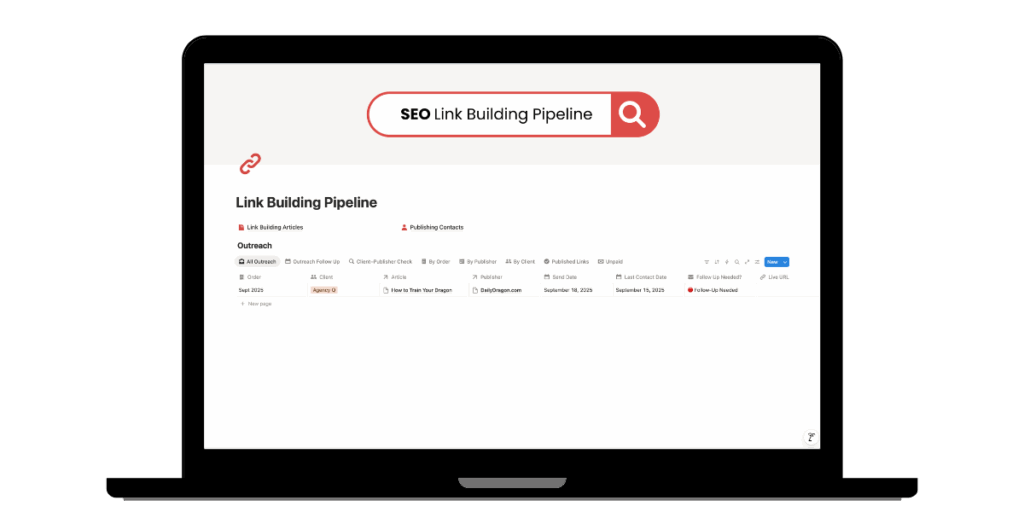
The Link Building Pipeline is made up of three connected databases that work together to keep your outreach running smoothly: link building articles, publishing contacts, and outreach.
The link building articles database is where you will keep track of each article that needs to be sent out. Here, you can see where it is in the writing process and which keywords and pages you’re targeting.
The publishing contacts database is where you’ll store all your publisher details. You can easily see which websites they manage, along with key metrics, names, and contact info. Filters make it simple to find publishers that meet your criteria, keeping all of their details organized in one convenient place.
The outreach database is where everything comes together. It shows which articles have been sent to each publisher, when they were submitted or published, the live links, and which ones still need follow-up. It gives you a clear view of your outreach progress at a glance, making it easy to stay organized and ensure nothing slips through the cracks.
As any link builder will tell you, outreach has a lot of moving parts, and it’s easy to lose track when everything lives across multiple spreadsheets, emails, and Google Docs. This Notion dashboard keeps everything in one place so you can focus on building relationships—not chasing links.
🔗 Get the Link Building Dashboard—or bundle it with the SEO Manager Dashboard in the SEO Project Bundle for a complete workflow.
3. SEO Client Portal Notion Dashboard
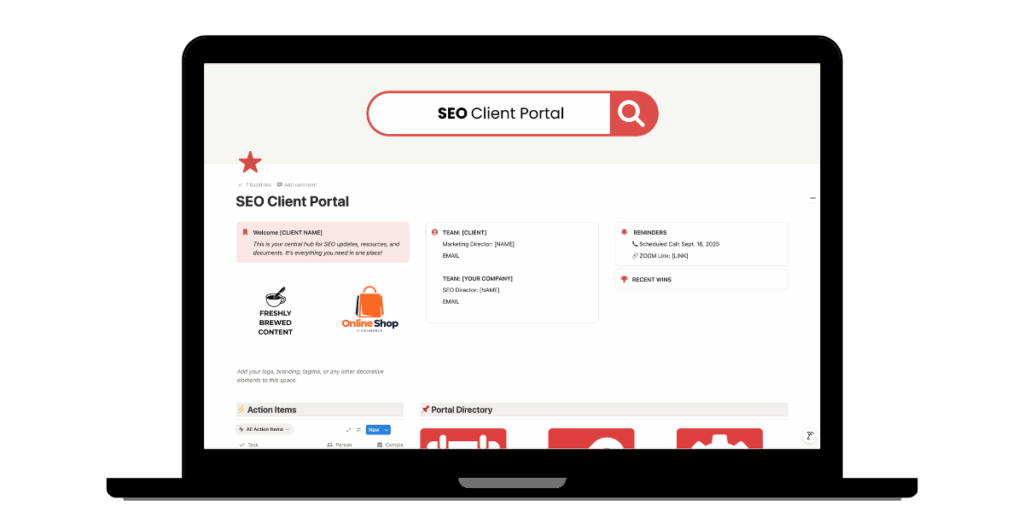
The first two Notion templates focus on internal project management, while these next two are built for SEO managers and freelancers who need an easier way to manage client communication.
The SEO Client Portal helps digital marketers keep clients informed on work in progress, deliverables, and performance. It includes seven organized pages covering everything from content and backlinks to meetings and contracts.
Content Hub
The Content Hub is where clients can see both in-progress and published content. It includes everything from target keywords and article status to due dates and live links. There’s also a space to drop Google Doc links for client edits and approvals before articles go live.
This page includes three views:
- Table view—perfect for filtering content by month or order
- Workflow view—shows where each article sits in the production pipeline
- Calendar view—a quick glance at upcoming deadlines throughout the month
Together, these views make it easy for clients to stay informed and for teams to keep content projects on schedule without extra back-and-forth.
Backlinks
The Backlinks page is where you can log all the links that have gone live from your outreach efforts. Clients can filter backlinks by order, month, or domain authority to quickly see which outlets have linked to their site. Each entry includes the live URL and key metrics about the referring website. You can also add a graph to show how referring domains have grown each month, making it easy for clients to see progress at a glance.
Technical SEO Log
The Technical SEO Hub is a database for tracking and communicating technical issues found during audits, Screaming Frog crawls, or Google Search Console checks. This is where I log any issues that require outside assistance—whether from the client or their development team. Each entry includes the error type, priority, URL, and status, along with notes outlining my proposed solutions.
Performance Dashboard
The Performance Dashboard provides a quick snapshot of overall SEO performance. Clients can view key traffic trends, top-performing content, and keyword visibility at a glance. It reduces back-and-forth emails about monthly performance, and gives clients easy, on-demand access to their metrics without waiting for the next check-in.
Meetings
The Meetings page is where you can schedule upcoming calls and share key details like Zoom links, agendas, action items, and attachments. It gives clients an easy way to see when the next check-in is scheduled, what will be discussed, and any follow-up tasks on their end. This cuts down on the number of emails that need to be sent back and forth and makes it easy to find all the relevant information in one convenient place.
Resource Library
The Resource Library is where I store key materials clients might need as we plan and implement their SEO strategy. It includes an SEO glossary with definitions of common terminology and a section for linking to important tools and resources, such as:
- Google Analytics
- Google Search Console
- Client CMS
- Hosting
- Google Tag Manager
- Shared folders and drives
- Brand guidelines
- Brand stylebooks
By keeping everything in one central hub, clients always know exactly where to find the information and assets they need—no digging through old emails or shared links required.
Contracts & Invoices
Finally, the contracts and invoices page is where I keep a log of invoices. It includes the issue date, amount due, payment status, and a copy of the PDF generated by your invoicing software. While I still email invoices directly to clients, this log provides an easy way for them to review payment history and track past work at any time.
There’s also space to upload signed agreements and any necessary tax documents, such as a Form W-9, so everything related to billing and contracts is stored in one place.
I built the SEO Client Portal Notion Dashboard to simplify communication, reporting, and approvals for both me and my clients. It keeps my inbox under control and gives clients a polished, professional experience.
💬 Get the SEO Client Portal Dashboard to simplify client communication, share deliverables, and keep projects running smoothly.
4. SEO Client Manager Notion Dashboard
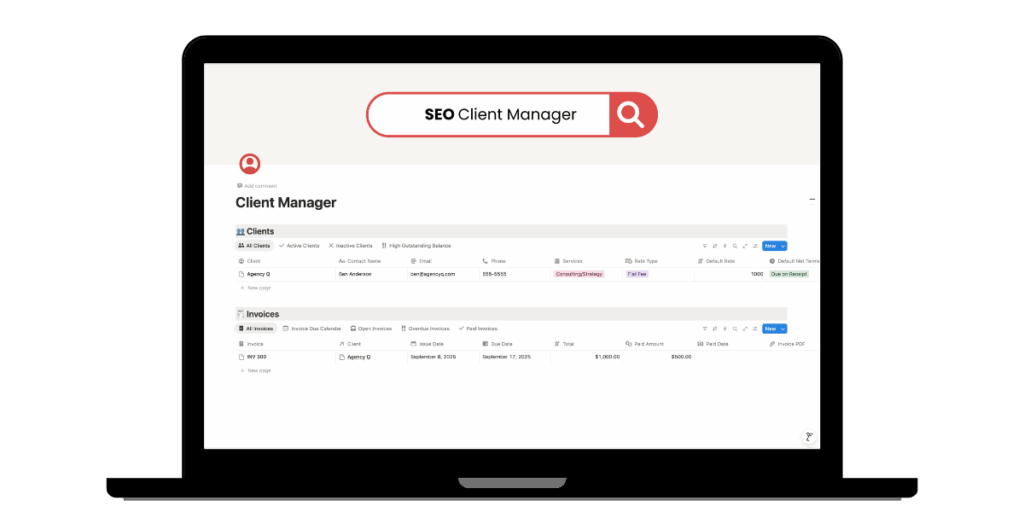
The SEO Client Manager Notion Dashboard is the smallest of the four SEO dashboards, but it’s arguably the most important. It helps you monitor cash flow at a glance, making it easy to see who has paid and who’s still outstanding.
It includes two databases: a Client Database and an Invoice Database. The Client Database stores key details like contact name, email, phone number, services, rate type, net terms, past-due balances, and whether you’re still doing active work for that client.
The Invoice Database tracks every invoice you’ve sent, including the issue date, due date, total amount, payment status, and any outstanding balance.
Together, these databases help you see who to follow up with for payment, which clients may need work paused due to nonpayment, and who you could reach out to if you’re looking to rebuild a relationship.
🫶 Get the SEO Client Manager Dashboard to track clients and payments—or upgrade to the SEO Client Cares Bundle for both client dashboards.
Freshly Brewed Dashboards for Smarter SEO
I built these templates using the same systems I’ve relied on to manage SEO campaigns for more than 15 years. Going freelance meant finding a way to stay organized without big-agency tools, and these dashboards have filled that gap perfectly. They keep me focused, my clients in the loop, and my business running like a well-oiled machine.
Ready to take your SEO workflow out of spreadsheets? You can grab all of my templates (and a few bundles) in my Notion Dashboards shop.
💥 Grab the SEO Mega Bundle and get all four dashboards — your fully brewed Notion setup for managing every part of your SEO business in one place.